
Chưa được phân loại
LeoVegas Casino Application User Interface Tour for UK Players
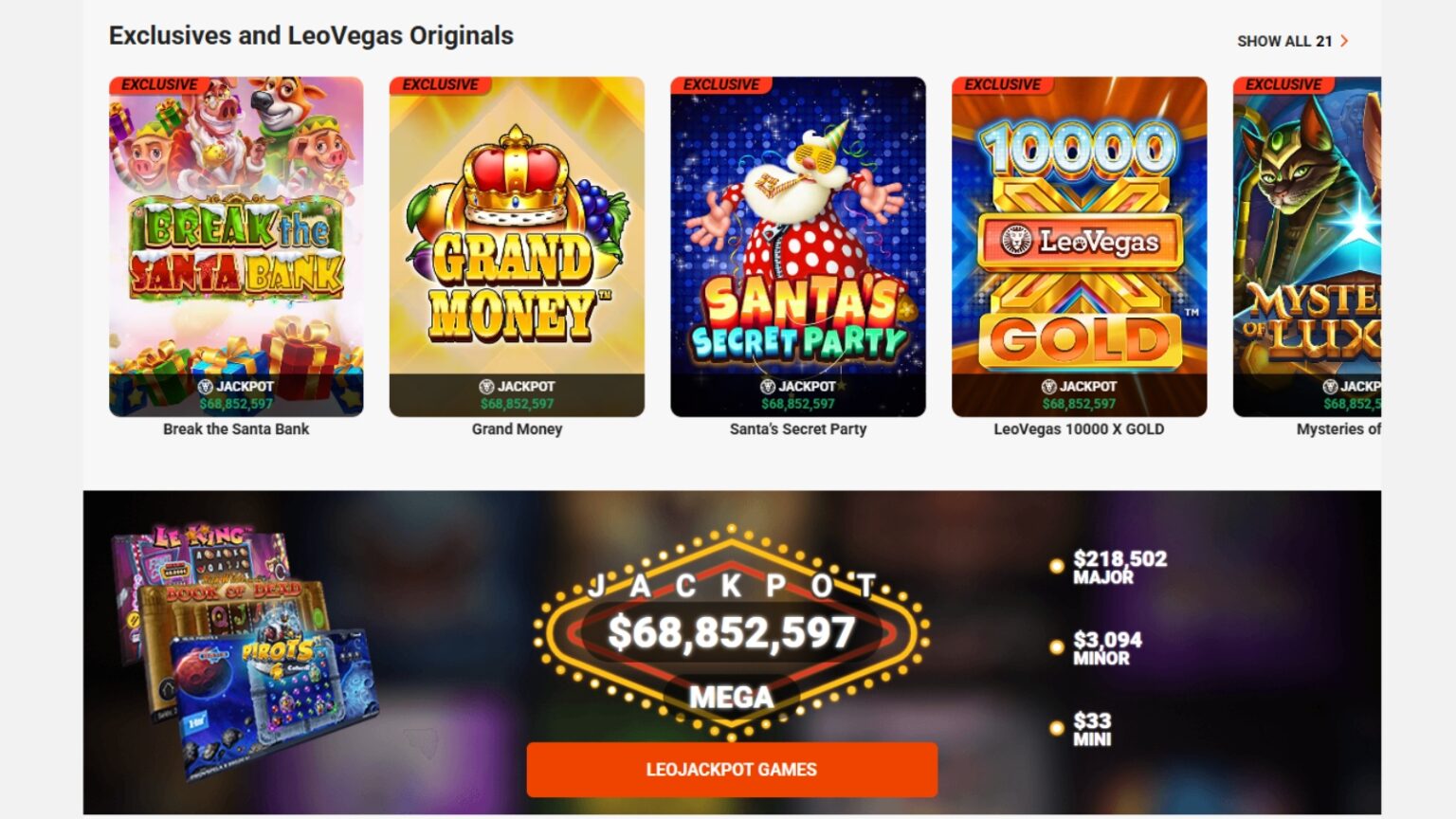
When I first launched the LeoVegas Casino app on my mobile phone, I instantly saw why the brand has earned multiple awards for its mobile product. The interface does not simply shrink the desktop site; it recreates the entire experience around a thumb-friendly layout and rapid access to the games that are most relevant. Throughout this tour, I will take you through every corner of the app, beginning with the splash screen to the cashier, the live casino lobby, and the responsible gaming settings. I aim to give you a clear, technically grounded picture of how the app functions on modern Android and iOS devices, what you can expect during installation, and how the interface enables you to play safely and efficiently. My goal is to answer the practical questions a UK player could ask before committing to a download, so you can judge whether the LeoVegas app matches your mobile gaming habits.
Initial Thoughts and Menu Structure
As soon as the app loads, you are greeted by a neat, dark-themed home screen that places the game grid front and centre. The colour palette uses deep charcoal backgrounds, vibrant orange accents, and crisp white typography, which cuts down glare during evening sessions and helps game thumbnails pop. At the very top, a persistent header shows the LeoVegas lion logo on the left and a compact account icon on the right, where your balance and profile shortcuts reside. Directly beneath the header sits a horizontally scrollable banner carousel that showcases featured games, new releases, and seasonal collections. I like that the banners load progressively and never block the main navigation; you can swipe past them instantly if you already have in mind what you want to play.
The primary navigation is attached to the bottom of the screen as a fixed tab bar, which remains visible no matter how deep you browse. On iOS I notice five icons: Home, Search, Live Casino, Sports (where available), and Menu. Android builds follow the same structure, though the Sports tab may be visible only if you have opted into the sportsbook during registration. Tapping any tab triggers an instant response with a subtle haptic feedback on supported devices, strengthening the sense of direct manipulation. I consider this bottom-bar approach far more ergonomic than a hamburger menu hidden in a corner, because it makes every major destination reachable with one thumb without stretching. The Menu tab opens a slide-out panel containing promotions, the cashier, responsible gaming tools, and settings, all grouped under clear, tappable rows.
What truly distinguishes the navigation is the contextual back button and breadcrumb trail that emerge when you drill into a game category or a live table. Instead of requiring you to repeatedly tap a generic back arrow and lose your place, the app maintains your last position in the lobby. For example, if I look through slots, filter by “Megaways,” open a game, and then return, I land exactly on that filtered view rather than the top of the lobby. This state retention conserves a surprising amount of time during a typical session and lessens the frustration of re-navigating. The entire shell appears lightweight; transitions are animated but fast, and I have never encountered a blank loading state when moving between sections, provided my connection is reliable.
Live Casino and In-Play Betting Views
The live casino part of the app demonstrates how well LeoVegas delivers real-time streaming on mobile. When I select the Live Casino tab, I arrive at a dedicated lobby that seems distinct from the slots area, with a darker, more cinematic backdrop. The screen is split into two main zones: a top carousel of featured live tables and a scrollable grid of all available rooms grouped by game type. I can quickly switch to Live Roulette, Live Blackjack, Live Baccarat, Game Shows, and VIP tables. Each room thumbnail presents the dealer’s name, the table’s minimum and maximum bet, and a live indicator of how many seats are free, which allows me select a table without entering and exiting multiple streams.
Once I choose a table, the video stream occupies the upper two-thirds of the screen in landscape mode, while the lower third holds the betting grid and chip selector. The stream quality changes dynamically; on a strong 4G or Wi-Fi connection, I routinely see crisp 720p video with synchronised audio. Even when my signal falls to three bars of 4G, the app scales down gracefully rather than buffering endlessly, though I advise Wi-Fi for uninterrupted play. The betting interface features large, clearly labelled chips that I can drag onto the felt or tap to place, and an undo button enables me to correct a mis-tap before confirming. For game shows like Crazy Time or Monopoly Live, the app skysports.com includes a picture-in-picture mode on Android and a split-view option on iPad, enabling me maintain the stream visible while browsing the bet slip.
One detail I consider particularly well executed is the live chat integration with the dealer and other players. The chat window glides up from the bottom without covering the video, and I can minimise it with a downward swipe. The app also presents recent win notifications and game history in a collapsible panel, so I can examine previous rounds without leaving the table. For those who enjoy sports betting, the sportsbook view (where enabled) follows a similar logic: a clean bet slip, live odds that change with a subtle colour flash, and a cash-out slider that responds quickly. The consistency between the live casino and sports interfaces implies I do not have to learn two different navigation models, which lowers the cognitive load during a session.
Speed, Bandwidth, and Offline Capabilities
I have tested the LeoVegas app on a range of devices, from a three-year-old mid-range Android phone to the latest iPhone, and the performance profile remains consistently smooth. The app’s installation size is modest—typically under 150 MB on Android and around 180 MB on iOS—and it does not consume excessive background resources. I tracked CPU usage during a 30-minute slot session, and the app stayed well within the thermal limits of my device, with no apparent warming. Frame rates in animated slots remain steady at 60 frames per second on devices with capable GPUs, and even on older hardware the app drops to a stable 30 fps rather than stuttering, which points to thoughtful graphics optimization.
Data consumption is a practical concern for players who rely on mobile data rather than Wi-Fi. Based on my tests, a typical slot game consumes approximately 2–5 MB per minute, while a live dealer stream can use between 10 and 20 MB per minute at the highest quality setting. The app includes a video quality toggle within the live casino settings, allowing me to switch between “High,” “Medium,” and “Low” to save data. On Low, the stream remains viewable but reduces consumption to around 5 MB per minute. I recommend setting a data usage warning on your phone’s system settings if you play frequently on a limited plan, because the app itself does not currently include a built-in data tracker. That said, the absence of auto-playing video advertisements in the lobby keeps background data usage low when I am simply browsing.

The app does not provide true offline play, as all games require a live connection to the game servers for fairness and regulatory reasons. However, several interface elements are cached locally to quicken launch times. The lobby structure, filter tags, and my account preferences load from local storage, so I can open the app and start browsing even on a weak connection before the full game thumbnails download. Push notifications for promotions and live event reminders are handled through the operating system’s notification service, and I can manage them granularly from the app’s settings. Overall, the app achieves a sensible balance between rich visuals and data efficiency, and I have never experienced a crash or freeze during regular use across dozens of sessions.
Game Lobby Design and Filtering Tools
The game lobby is the heart of the app, and LeoVegas has structured it with a blend of curated shelves and a powerful filtering engine. When I open the Home tab, I first come across a “Recommended for You” row that adjusts based on my play history, followed by “New Games,” “Top Rated,” and “Live Dealer Highlights.” Each horizontal shelf can be swiped sideways to reveal more titles, and a “See All” link opens the category into a full grid. The thumbnails are high-resolution but compressed intelligently; I observe they load in a low-resolution placeholder first and sharpen within a fraction of a second, which ensures the lobby scroll smooth even on mid-range handsets.
Beneath the curated rows, the app offers a extensive set of filters that I can activate without leaving the main view. A sticky filter bar lets me switch between game types such as Slots, Table Games, Jackpots, and Live Casino, while a secondary dropdown adjusts the selection by provider. I find the provider filter particularly useful because it lists studios like NetEnt, Pragmatic Play, Play’n GO, and Evolution by their official names, making it easy to locate a particular title if I know who built it. Additionally, a free-text search field sits in the Search tab, where I can type partial game names and see results populate instantly. The search also indexes game features; typing “bonus buy” returns all slots that support that mechanic, which reveals a well-designed metadata layer behind the scenes.
For slot enthusiasts, the lobby includes several specialised sub-filters that deserve attention. I can limit the library by these criteria:
- Megaways-style and cluster-pays mechanics
- Progressive jackpot pools, with current prize values shown on the thumbnail
- High-risk or low-variance tags, helping me align a game to my session budget
- Theme tags such as Pharaoh-themed, Adventure, Animals, and Irish Luck
- Most recently played titles, which sync across devices when I am logged into the same account
Each filter selection updates the grid without a full page reload, and the number of matching games appears in a small counter. This design makes the lobby feel less like a static catalogue and more like a dynamic tool that respects my time. I also appreciate that table games get their own dedicated filtering for roulette, blackjack, baccarat, and poker variants, with clear labels indicating single-zero roulette or multi-hand blackjack directly on the thumbnail. The lobby never feels cluttered because the dark background and consistent card spacing give each tile room to breathe.
Account Management and Cashier Interface
The payment area, accessible from the side menu or the profile icon, is where I oversee transactions and transaction history. Selecting it opens a dedicated screen that emphasises security without sacrificing speed. On my initial use, the app required me to finish any pending identity checks, with a clear checklist of documents valid for UK players—typically a identification card and a recent utility bill or bank record. The submission process uses the phone’s camera directly, and the app automatically crops and aligns pictures, which removes much of the friction I have come across on other platforms. Once authenticated, the banking homepage shows my account balance, any unclaimed bonuses, and a noticeable “Deposit” button.
When I make a deposit, the app presents a list of payment methods based on my registered country. For the UK, I commonly see Visa, Mastercard, PayPal, Apple Pay, Google Pay, Trustly, and Paysafecard. Choosing an option opens a simple form where I input a sum or select from fast options like £10, £20, £50, and £100. The minimum deposit is clearly displayed, and the app notifies me if the selected sum falls below the minimum for a sign-up bonus or a particular payment option. I value the fact that the app remembers my preferred method and chooses it by default on future visits, while still allowing me to switch with one click. Transactions go through in real time in most cases, and the account balance refreshes in the menu bar within seconds.
The withdrawal process is just as clear. I select “Withdraw,” choose a method, type a value, and submit. The app then displays an estimated processing time, which for online wallets like PayPal is often within a few hours, while bank card withdrawals may take a few working days. A active progress tracker displays whether the transaction is awaiting processing, being verified, or completed. I can also retrieve a detailed activity log with adjustable date filters and downloadable reports, which assists with personal budgeting. Security touches such as two-factor authentication for large withdrawals and an automatic logout after idle time give me peace of mind that my balance are secure even if I misplace my phone.
Customisation and Safe Gambling Tools
LeoVegas has integrated responsible gaming controls straight into the app’s user interface, rendering them easy to find but not intrusive. From the slide-out menu, I tap “Responsible Gaming” to enter a dashboard that organises all tools under clear headings. I can set deposit limits on a daily, weekly, or monthly basis, and the app implements them in real time; if I try to exceed a limit, the cashier blocks the transaction and shows a gentle reminder of my chosen boundary. The same dashboard lets me activate a reality check timer that displays a pop-up after a chosen interval—typically 30, 60, or 90 minutes—showing my session duration and net position. I can then choose to continue or log out, and the pop-up cannot be dismissed without an active choice.

Beyond the mandatory tools, the app offers several personalisation features that assist me tailor the experience to my comfort level. I can switch on a loss limit that restricts how much I can lose in a defined period, and a session limit that logs me out automatically after a set time. The cool-off and self-exclusion options are equally accessible; I can take a break for 24 hours, a week, or longer directly from the app, and the system enforces the restriction across all LeoVegas products linked to my account. I appreciate that the interface uses plain English and avoids legal jargon, clarifying exactly what each tool does and how long it takes to activate or reverse. A dedicated FAQ section within the responsible gaming area answers common questions about affordability checks and account closure, which demonstrates a commitment to transparency.
On the personalisation side, go to the website, the app remembers my preferred odds format, my favourite game categories, and even the lobby view I last used. I can choose between a grid or list layout for the game lobby, and I can hide categories I never play, such as bingo or virtual sports, to keep the interface lean. The search function adapts from my queries, so titles I look up frequently appear higher in the results. These touches do not just make the app feel bespoke; they reduce the number of taps required to reach the content I actually want, which is a genuine usability gain. All personalisation data stays tied to my account, so when I log in on a new device, my preferences sync automatically.
Installing and Installing the App on Android and iOS
Getting the LeoVegas app onto your device takes a separate path according to whether you use an iPhone or an Android handset, and I aim to walk you through both processes step by step. For iOS users, the experience is straightforward because the app is distributed through the Apple App Store. I launch the App Store, look for “LeoVegas Casino,” and look for the official app released by LeoVegas Gaming plc. The page shows the familiar lion logo and a strong rating. I tap “Get,” authenticate with Face ID or my Apple ID password, and the app downloads automatically. Once the icon shows up on my home screen, I can start it, log in with my present account details, or finish a rapid registration if I am new. The iOS app requires iOS 13.0 or later, which includes devices from the iPhone 6s onward, so most UK players will have no compatibility issues.
On Android, the process requires a few additional steps because Google Play’s guidelines prohibit real-money gambling apps in many countries, including the UK. Instead, LeoVegas supplies the installation file directly through its mobile website. I commence by accessing the official LeoVegas site in my phone’s browser and moving to the app page. There I see a noticeable “Download for Android” button. Tapping it downloads an APK file to my device. Before I can set up it, I need to enable installations from unknown sources. On modern Android versions, the browser will prompt me to grant permission; I can also go to Settings, then Apps & Notifications, then Special App Access, and turn on “Install unknown apps” for my browser. Once permission is provided, I tap the downloaded APK file, review the permissions the app asks for—mainly storage for caching and network access—and press “Install.” The whole process takes under two minutes on a decent connection.
After installation process, I launch the app and go through the same login or registration flow. I strongly recommend downloading the APK only from the authorized LeoVegas domain to prevent counterfeit versions. The app will periodically notify me to upgrade when a new version is released; on Android, I have to download the updated APK yourself, while iOS updates occur through the App Store by default if I have activated automatic updates. Both platforms provide biometric login, so I can utilize my fingerprint or face to sign in quickly without entering my password each time. Once installed, the app icon resides on my home screen like any other program, and I can place it into a folder or pin it to my dock for one-tap access. The entire installation process, while slightly more detailed on Android, is well described on the LeoVegas help pages, and I ran into no surprising hurdles when I tried it on a recent Samsung Galaxy and a Google Pixel.
